Select Version of EA Desktop:
Creating a cutout for a license involves Using the cutout editor from the Editor View of the License module. The cutout editor provides a working platform for creating and modifying a cutout.
The features available in the cutout editor provide a multitude of options for completing the task of creating a cutout. For a full description of the features refer Understanding the toolbar.
Here is a generic overview of a typical workflow for creating a cutout:
-
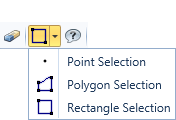
Use the selection tools to select features from the survey. The selection you create is a draft for the cutout. After adding the selection as a cutout, you can modify further.
-
To add a selection as part of the cutout, decide what type of cutout you are adding; Inclusion or Exclusion. Select the type and then click Add.
-
Modify the cutout using the various cutout editing tools. This includes creating more selections to Add or Remove from the cutout.

-
Use the snapping tools to help set the cutout.
-
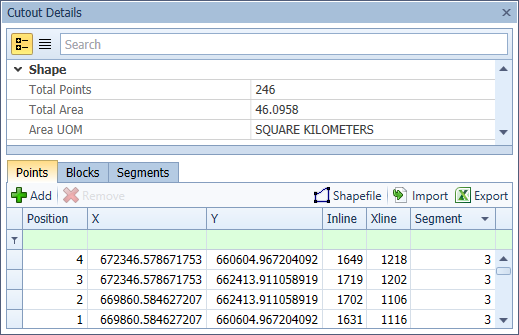
Open the Cutout Details to review the information and edit as needed. Alternatively, you can features in the Cutout Details window to import the points or segments instead of drawing the cutout.
-
When the details for your cutout are correct, click Complete in the lower right corner of the map and the information adds to the Cutouts grid.